
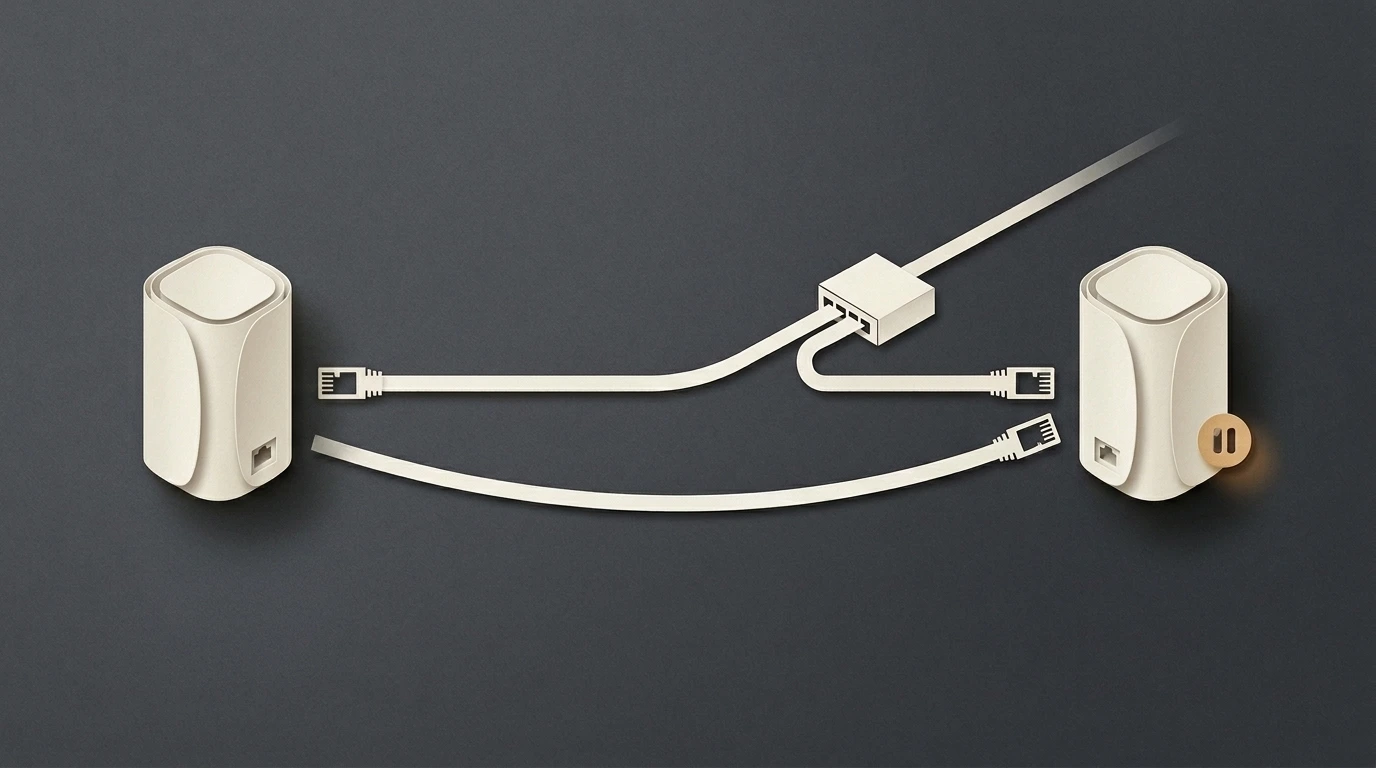
The cable clicks into place. Your mesh app shows Ethernet. The next speed test is slower.
If that is your situation, check the connection you just added before resetting the network. Ethernet backhaul is the link between a mesh satellite and the main router. A wired label describes the reported connection type; it does not establish the performance of every cable, port, or switch along that route. Manufacturers document separate checks for the backhaul, wiring arrangement, and connected device. [1] [4]
The useful comparison is the previous setup, a direct cable, and the installed wired path. Keep the device and test conditions consistent, change one part at a time, and record what follows the slowdown. This guide is a sourced troubleshooting method, not a hardware benchmark or a promise that one setting will fix every mesh system.
Quick answer
Confirm the satellite’s active backhaul, then test a known-working cable directly between the main unit and satellite using your model’s supported ports. If that works better than the installed route, investigate the bypassed cable, wall connection, or switch. If it does not, check the mesh mode and connected device before assuming the cable run is responsible. TP-Link specifically recommends bypassing an intervening switch when investigating backhaul problems. [1]
Keep these distinctions in mind
- A computer plugged into a satellite can still depend on a wireless link between that satellite and the main unit.
- A speed test run inside the router’s app may measure the main unit, not the affected room.
- An all-wired mesh mode and a preference for Ethernet on one node can behave differently. Check the documentation for your exact model. [2] [4]
Which connection did you actually wire?
A device using a satellite has two local links to consider:
Your device → mesh satellite → main router.
Connecting a laptop to the satellite by Ethernet changes the first link. Connecting the satellite to the main router changes the second: the backhaul. You can have either one wired without the other being wired.
Write down the full path, including anything between the mesh units. For example:
Main router → switch → wall cable → satellite → laptop.
That is an illustrative layout, not a wiring recommendation for every system. Your manufacturer’s rules determine which ports and connections are supported. ASUS’s standard AiMesh router example uses the main router’s LAN port and the node’s WAN port; applying a blanket “never use WAN” rule would be wrong for that example. [3]
Previous wireless
Restore only if supported. Verify the active backhaul.
Direct cable
Bypass the switch or wall run. Keep the client consistent.
Installed path
Restore the route. Does the same slowdown return?
Record a fair before-and-after comparison
Before changing settings, save the current topology and backhaul screen. Note the model, firmware, operating mode, ports, and original settings so you can restore them.
Use the same client, test tool, and test server where the tool allows it. Pause your own downloads and backups, avoid running several speed tests at once, and repeat each condition rather than relying on one result. Browser timing, device load, Wi-Fi, routing, and congestion can affect measurements. [5]
Compare these conditions:
Swipe or scroll horizontally to read all three columns.
| Condition | What to keep or change | What it helps you investigate |
|---|---|---|
| Previous wireless backhaul | Restore only if your system supports it; verify the app reports wireless | Whether the regression follows the change to wired backhaul |
| Direct Ethernet backhaul | Use a known-working cable, bypassing the installed switch or wall path | Whether the bypassed path is involved |
| Installed Ethernet backhaul | Restore the original cable run and intermediary equipment | Whether the symptom returns on that path |
Do not simply unplug a node that depends on an all-wired mode and expect it to reconnect wirelessly. Follow the model’s documented procedure for returning to a supported wireless configuration. If you cannot restore that safely, skip the wireless baseline and compare the two supported wired paths instead. ASUS documents a distinct all-wired mode and per-node connection priorities for mixed setups. [2]
Check what the mesh app is reporting
Open the topology or node details for the affected satellite. Record:
- Its upstream unit and whether the backhaul is Ethernet or wireless.
- Any displayed Ethernet link rate or port warning.
- Whether your test device is attached to the satellite you intended to test.
The available details vary by product and firmware. “Connected” is less useful than knowing the actual path.
Also establish where the speed test starts. TP-Link says its Deco app’s built-in internet test measures the main Deco’s connection, not the speed received by each client. A good result there does not clear the satellite or the device’s Wi-Fi link. [4]
A displayed link rate is a connection characteristic, not a promise of application throughput. If a segment reports an unexpectedly low rate, inspect that segment before treating the entire mesh as slow. For the broader distinction between a device’s gigabit link and a slower end-to-end route, see Ethernet Shows 1 Gbps but Downloads Stay Around 100 Mbps.
Bypass the installed path with a direct cable
Use a cable already known to work at the intended link rate. Connect the main unit and satellite directly using the ports and topology specified for your model, temporarily removing the intervening switch or wall run from this connection. Do not create a second parallel connection or network loop. TP-Link includes a direct-unit test in its backhaul troubleshooting guidance. [1]
Wait for the mesh to reconnect, then confirm the app reports Ethernet backhaul before testing again.
Preserve the positions of the satellite and client if you are comparing Wi-Fi results. A temporary cable must be routed safely, without creating a trip hazard. If keeping the positions is impractical, use a wired client connected to the satellite for the comparison when the model has a suitable spare port. Record that change and repeat the installed-path test with the same wired client.
Moving the node beside the main router and then testing over Wi-Fi changes more than the backhaul. The client’s radio connection, interference, and chosen access point can change too. A faster result in that arrangement does not isolate the old cable run.
If the node must be moved, treat the result as a limited diagnostic clue. Do not describe it as a controlled before-and-after comparison.
Investigate the part you bypassed
If the direct connection improves repeated results and the installed path brings the slowdown back, narrow the comparison:
- Test another patch cable while keeping the same ports.
- Try another supported switch port, then repeat the test.
- Reintroduce the switch separately from the wall run where the layout permits.
- Record any reported link-rate change, disconnect, or backhaul fallback.
TP-Link recommends checking ports and cables and removing a switch from the path when investigating whether Ethernet backhaul takes effect. It also documents compatibility issues involving the traffic used to establish the backhaul. [1]
An improvement after bypassing several components does not identify which one failed. Keep narrowing the changed section before replacing equipment. If the problem follows a wall run, a cable installer or a proper cabling test may be more useful than another router reset.
Do not disable loop prevention, security features, or other network-wide protections as a generic speed fix. If switch behavior is implicated, give its manufacturer the model, topology, and direct-cable result and ask for the supported configuration.
Check topology and backhaul mode
A working cable cannot compensate for an unsupported wiring arrangement. The correct arrangement depends on the mesh system and whether it is routing traffic or operating as access points.
For Deco: TP-Link documents different wiring rules by operating mode. In router mode, its diagrams place satellites behind the main Deco, either directly or through its downstream switch. A switch on the modem side is not interchangeable with that arrangement. Consult the diagram matching your mode before moving cables. [1]
For ASUS AiMesh: distinguish Ethernet Backhaul Mode, intended for an all-wired setup, from Backhaul Connection Priority on individual nodes. ASUS documents per-node priorities for systems that use wired and wireless links together. Match the setting to your actual layout rather than enabling every option containing “Ethernet.” [2]
These are vendor examples, not instructions for every mesh product. Use your exact model’s port map and firmware guidance. Before any setting change, preserve a supported way to reach the administration interface and record the rollback step. If you cannot do that confidently, stop at observation and contact support.
Interpret the result and record the next step
Swipe or scroll horizontally to read all three columns.
| What you observe | Useful next step | What it does not prove |
|---|---|---|
| Direct cable is consistently better; installed path restores the slowdown | Isolate the bypassed cable, wall connection, and switch | Which individual component is responsible |
| Ethernet does not become the active backhaul | Check supported ports, topology, mode, and compatibility | That a faster internet plan is needed |
| A wired client at the satellite performs well, but its Wi-Fi client does not | Compare client attachment, radio conditions, and the device | That every device or Wi-Fi band has the same problem |
| Direct and installed paths are similarly slow | Compare the main unit and another client; review mode and limits | That the installed path is healthy, or that the ISP is at fault |
Copy this note before contacting support:
Mesh models and firmware:
Router/AP mode; all-wired or mixed setup:
Original setting and rollback step:
Main unit → ports/switch/wall run → satellite:
Test client, attachment and location:
Test tool/server, time and background traffic:
Previous wireless / direct cable / installed path results:
Active backhaul and displayed link rate in each condition:
Change that reproduced the slowdown:
You do not need to post passwords, account details, public IP addresses, or unredacted administration screenshots to explain this comparison.
Frequently asked questions
Does “Ethernet backhaul” mean my whole connection is wired?
No. It describes the inter-unit link. Your phone may still use Wi-Fi to reach the satellite. Conversely, a laptop plugged into a satellite may still rely on wireless backhaul. Identify both links before comparing results. [2]
Should I factory-reset the mesh first?
First record the setup and perform the supported path comparisons. A reset can erase configuration and make the original problem harder to compare. Use a reset only when the manufacturer’s guidance for your particular fault calls for it, with a recovery plan.
Should the cable always go into a LAN port?
No universal port rule applies. ASUS’s standard AiMesh router example uses LAN on the main router and WAN on the node. Other products and operating modes have their own rules. [3]
Will Ethernet backhaul give every room my full internet speed?
Do not assume that. The client connection, port capabilities, intermediary equipment, and test conditions remain relevant. TP-Link explicitly distinguishes its main-unit app test from client speed and warns that a slower Ethernet port can limit the result. [4]
Does this mean wireless backhaul is better?
A regression in one setup is a reason to investigate that setup. It does not establish that wireless is universally faster. For the broader buying decision, see Mesh Wi-Fi vs Router; for this fault, stay focused on what changed.
Start with one comparison
Record the installed-path result, then compare it with a supported direct cable using the same client and test conditions. Keep the change only if the improvement repeats. If you use VelocityVerify’s speed test, use it as a consistent observation tool—not proof of which component failed. Its methodology explains the measurement limits.
Sources and scope
- TP-Link: Deco Ethernet Backhaul—Setup, Wiring Rules, and Troubleshooting. Direct-cable isolation, ports, switch compatibility, and mode-specific topology.
- ASUS: Ethernet Backhaul Mode and Backhaul Connection Priority. All-wired versus mixed setups and per-node priorities.
- ASUS: Wired Connections Between AiMesh Routers. Model-specific connection procedure and example port roles.
- TP-Link: Fix Slow Deco Internet Speed. Main-unit versus client measurements, device and port limits.
- VelocityVerify: Testing Methodology and Editorial Integrity. Consistent testing conditions and measurement limitations.
This guide synthesizes manufacturer documentation. It does not report a new mesh benchmark, certify your wiring, or reproduce every vendor’s interface. Menu names and supported layouts can change with model and firmware.

About the Author: Younes Kirat
Younes publishes and maintains VelocityVerify, focusing on broadband diagnostics, latency reduction, and consumer networking explainers. Read more about his work on his author profile.