
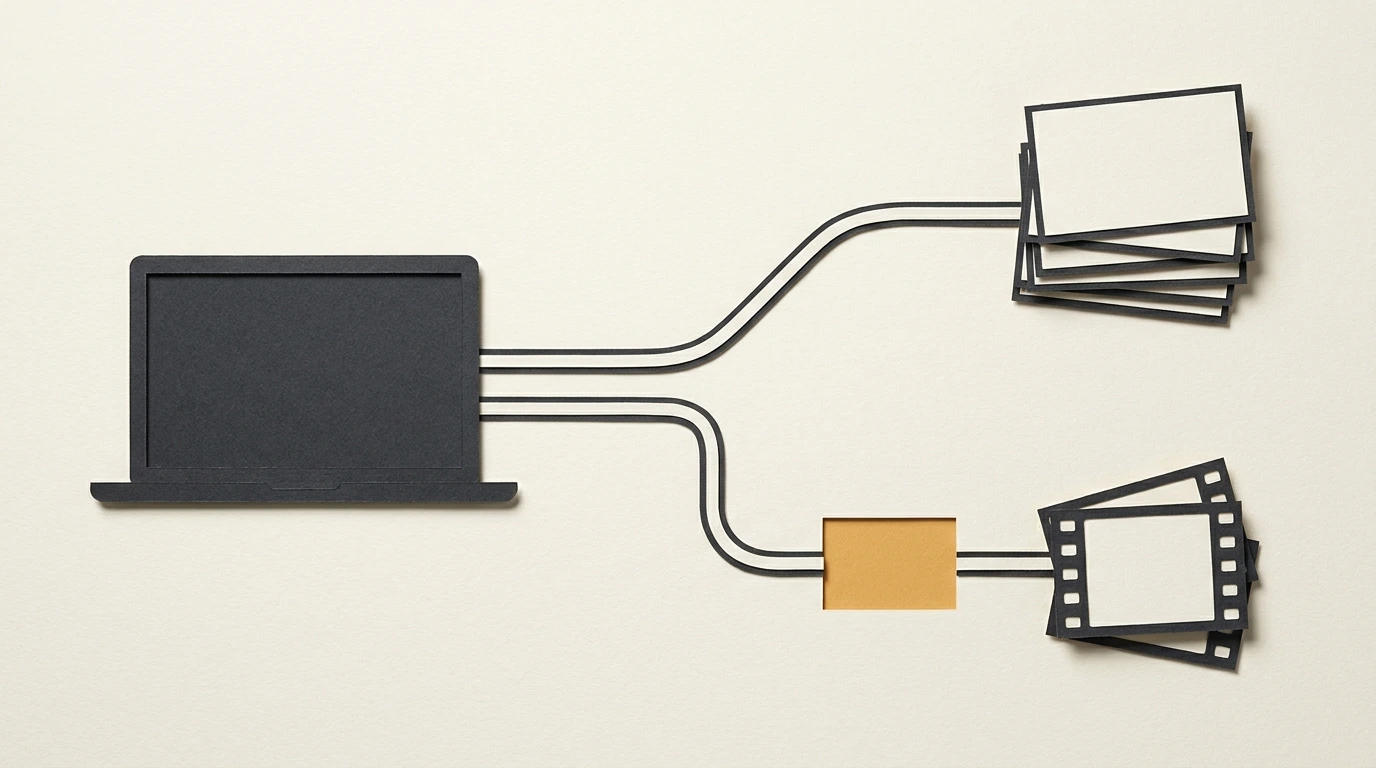
If YouTube buffers while Speedtest looks fast, record the video’s buffer trend before changing settings. Then compare the same clip, device and quality, one change at a time.
A separate speed test measures a different exchange of data from the video you are watching. A high result can coexist with poor YouTube delivery. A low-looking YouTube reading can also appear while playback is working well. Start by separating those situations.
The goal is to leave with a repeatable pattern you can investigate or report, rather than a collection of changed settings.
Quick answer
Open Stats for nerds by right-clicking the YouTube player on a desktop watch page. Watch Buffer Health through the actual interruption, and record Connection Speed, the reported resolution and the visible symptom. YouTube documents the overlay as troubleshooting information. [1]
Then run your separate speed test outside that playback observation. Ookla describes its throughput test as deliberately using enough traffic to fill the connection. Running it while watching can introduce the load you are trying to investigate. [2]
Use this starting point:
- Playback is smooth and the buffer remains ahead: the difference between the numbers alone does not establish a fault.
- The buffer drains toward empty and the video pauses: compare delivery conditions, even if the separate test was fast.
- The picture stutters while video remains buffered: follow the buffered-video stutter guide rather than assuming that more download speed will help.
These observations guide the next check. They do not identify a responsible company or device.
Keep the observations separate
- 01Watch the video
Record the symptom and buffer trend without a running speed test.
- 02Pause and test
Run the separate speed test. Record its time and result.
- 03Return to playback
Check whether the original symptom repeats. Note what changed.
A proposed observation order, not a benchmark or a guarantee of cause.
1. Why the two speed readings can disagree
Ookla’s download test measures throughput between your device and servers in its testing network. Its methodology describes using multiple connections and servers to assess available throughput. The main download-speed result is not a measurement of the particular YouTube video session. [2]
YouTube’s Connection Speed appears inside its playback-debug overlay. Read it alongside the current resolution, buffer behavior and actual viewing experience. The overlay is useful context, but the primary help page used here does not document the exact estimator or averaging window for that field. Treating it as a second identical Speedtest would assume details that have not been established. [1][5]
The mismatch therefore leaves several possibilities open. Conditions may have changed between observations. Delivery to the video service may behave differently from delivery to the test service. The viewing browser and its extensions may also matter. The numbers alone cannot separate those explanations. YouTube’s own troubleshooting includes both connection checks and browser or extension checks. [3]
VelocityVerify has the same endpoint limitation. Its browser measurements use the site’s own test routes, with edge delivery handled by Cloudflare. They describe that exchange under the conditions of the run, not the performance of YouTube’s video delivery. [4]
Check the units before comparing
If the player displays kbps and your test displays Mbps, divide the kbps value by 1,000 before comparing. For example, 8,000 kbps equals 8 Mbps. This is a unit-conversion example, not a measured result.
Matching the units does not make the measurements equivalent. Keep the reading’s label and context in your notes. Do not relabel Connection Speed as the video’s bitrate, your internet plan speed or a guaranteed limit on the whole connection.
2. Decide whether there is a playback problem
Watch the video before trying to make its numbers match a speed test.
If the selected picture quality plays continuously and the buffer stays ahead, record that outcome. A reading below your plan speed is not, by itself, a reason to replace a router or buy a faster plan. Your practical question is whether delivery supports the playback you are asking for.
If playback pauses, watch what the buffer does immediately before and during the pause. Buffer Health describes video held ahead of playback; the overlay guide explains how it relates to delivery and interruptions. A screenshot after recovery can miss the behavior that mattered. [5]
Keep a different symptom separate: uneven motion with data still buffered. That calls for playback comparisons rather than treating the low connection-speed number as the diagnosis. Our existing stutter guide covers that branch in detail.
There is no universal buffer target in this guide. The useful observation is whether its behavior repeatedly lines up with the interruption.
3. Make a baseline without competing test traffic
Choose an ordinary on-demand video that has shown the problem. Keep the computer, browser, viewing position and connection unchanged for the initial observation.
- Record the viewing conditions. Note the video link and timestamp, browser/version, Wi-Fi or Ethernet, selected quality and playback speed. Record the resolution and frame rate actually reported by the overlay too.
- Watch through the fault. Note whether Buffer Health shrinks, recovers or remains ahead. Record the Connection Speed reading with its units and when it was observed. Distinguish a full playback pause from choppy motion or a quality reduction.
- Pause playback before the external test. Run one speed test separately. Record the service, time, download result and any server details the test actually shows. Avoid starting another download or test at the same time.
- Return to playback. Resume the video and see whether the symptom repeats under the recorded conditions. Note the new time and any change in actual quality.
This order keeps the speed test from becoming background load during the playback observation. It also creates a limitation: the results come from different times. A fast test before or after a pause cannot certify what happened at the exact moment of that pause.
Record known household activity where practical. You do not need to interrupt someone else’s call or switch off unfamiliar equipment to make a useful note.
Watch out for a buffered replay
Replaying a segment that is already available to the player can look smoother without demonstrating better fresh delivery. MDN distinguishes already-buffered media from media that can be requested for playback; that general browser model is not documentation of YouTube’s internal implementation. [6] Note whether you replayed, reloaded or moved to a different point, and watch the buffer behavior again.
You do not need to force a cache bypass or clear all browser data for this workflow. Keep replay conditions in the record instead of calling one smoother replay a confirmed repair.
4. Compare one condition at a time
Start with the comparison that answers your next question. Return to the original setup between unrelated changes so you can tell whether the original symptom still occurs.
Does another video behave the same way?
Try another on-demand video at a similar selected resolution and frame rate, using the same browser and connection. Record its actual playback quality.
If only one video repeatedly fails, keep both links and timestamps. That narrows the report, but it does not establish that the upload is defective. Different videos can have different content and playback characteristics, so this is not a perfectly isolated experiment.
Does the browser comparison change the result?
Use another updated browser on the same computer. Compare the original video and troublesome portion at the same selected quality and playback speed. YouTube recommends updating the browser and checking extensions when playback misbehaves. [3]
Record changes in actual resolution, codec label and sign-in state. Switching browsers changes more than the browser name: profiles, extensions and playback conditions can differ too. If the second browser works, record “smoother in this browser under these conditions” rather than declaring a particular extension or decoder guilty.
If you later check extensions, record their original state and change one at a time. Restore an extension if it makes no difference. Do not disable managed or security-required controls without the appropriate administrator’s guidance.
Does another available connection change the pattern?
If you already have a permitted alternative, compare the same computer and video using that connection. A phone hotspot can be an option if your plan allows it and you accept the data use. Avoid repeated high-throughput tests on a limited data allowance.
Switch back afterward and repeat the original observation. A repeatable difference is useful evidence about the two setups. It does not isolate the ISP: you may also have changed the local wireless link, router, public address and route to the service.
If no alternative is available, skip this comparison. Do not buy equipment or a VPN just to complete the worksheet.
5. Interpret the pattern without overclaiming
On narrow screens, scroll the table sideways to read all columns.
| Repeated observation | Useful next step | Limit of the conclusion |
|---|---|---|
| Low-looking player reading, smooth playback, buffer stays ahead | Keep the note; investigate further if actual quality or playback is unsatisfactory | The mismatch alone does not establish a fault |
| Buffer drains and video pauses, but the separate test is fast | Compare another video, browser or available connection | A fast external test does not certify that video session |
| One browser works better on the same connection | Investigate its profile and extensions with reversible checks | The comparison changed several browser conditions |
| Original connection fails again after an alternative works | Record the back-and-forth pattern for support | This does not prove throttling or identify a particular network segment |
| Lower quality plays more reliably | Record the original and lower quality, then restore the original for the next comparison | Lower quality changes both delivery demand and playback workload |
YouTube recommends checking the selected resolution and lists approximate sustained speeds, including 5 Mbps for 1080p and 20 Mbps for 4K. These are reference recommendations, not guarantees for every video or thresholds that diagnose your fault. [3]
You can try one lower quality as a temporary comparison. Record “lower quality played more reliably” if that is what happened. It does not establish whether the original constraint was delivery, device workload or something else.
A VPN improvement would not prove throttling
If you already use a VPN and are permitted to compare its state, an improvement is another observation to document. A VPN changes the connection conditions, including the route and public address. Cloudflare’s VPN explainer describes the intermediate VPN server and changed address visible to the destination. [7] The result cannot by itself distinguish deliberate traffic management from other route-dependent behavior.
Preserve the original setting and restore it after the comparison. Do not disconnect a required work VPN or install an unfamiliar free VPN for this check.
6. Keep a support-ready record
Copy this worksheet into a note. Make a separate entry for each comparison.
Date, time and time zone:
Video link and troublesome timestamp:
Device, operating system and browser/version:
Connection used; approximate Wi-Fi position if relevant:
Selected quality and playback speed:
Reported resolution/frame rate and codec label:
Visible symptom:
Buffer behavior before/during/after the symptom:
Connection Speed reading, units and observation time:
Known household/background traffic:
Separate speed-test service, time and download result:
Server details shown by that test, if any:
Replay, reload or different video portion used:
One condition changed:
Comparison result:
Original state restored; did the symptom return?
For YouTube support, you can also right-click the player and choose Copy debug info. YouTube says that this information includes details such as the device, video and a mostly unique playback identifier. Review it before sharing, and crop unrelated account or personal information out of screenshots. [1]
A report describing the video, time, buffer trend and repeatable comparison gives support more context than two unexplained speed numbers. Leave uncertainty in the note when the symptom will not repeat.
Start with the next interruption
Before changing another setting, capture one baseline entry from the worksheet during the actual problem. Choose the next comparison from that observation, and keep the original setup available so you can return to it.
Sources and scope
This is a researched diagnostic guide and suggested observation workflow, not an original hardware test or a demonstrated repair. It covers ordinary on-demand YouTube in desktop browsers, not YouTube TV or live-stream latency tuning. AI tools assisted with research organization and drafting.
- YouTube Help: Send YouTube debug info. Desktop overlay and debug-information instructions; sharing context.
- Ookla: Speedtest Methodology. Updated October 15, 2025. Throughput-test scope, multiple connections/servers and deliberate connection load. Vendor superiority claims are not adopted here.
- YouTube Help: Troubleshoot YouTube video errors. Connection, quality, browser and extension guidance; approximate sustained-speed recommendations.
- VelocityVerify: Testing Methodology. Current endpoints, delivery infrastructure and measurement limitations.
- Alan Spicer: YouTube Stats for Nerds Explained. Secondary explanation of overlay fields and buffer context; not primary documentation of YouTube’s internal estimator.
- MDN: Media buffering, seeking, and time ranges. General buffered-media behavior, not the implementation of a YouTube overlay field.
- Cloudflare: What is a VPN?. Used only for the intermediate-server/address explanation, not its broad claims about encryption, anonymity or security.

About the Author: Younes Kirat
Younes publishes and maintains VelocityVerify, focusing on broadband diagnostics, latency reduction, and consumer networking explainers. Read more about his work on his author profile.