
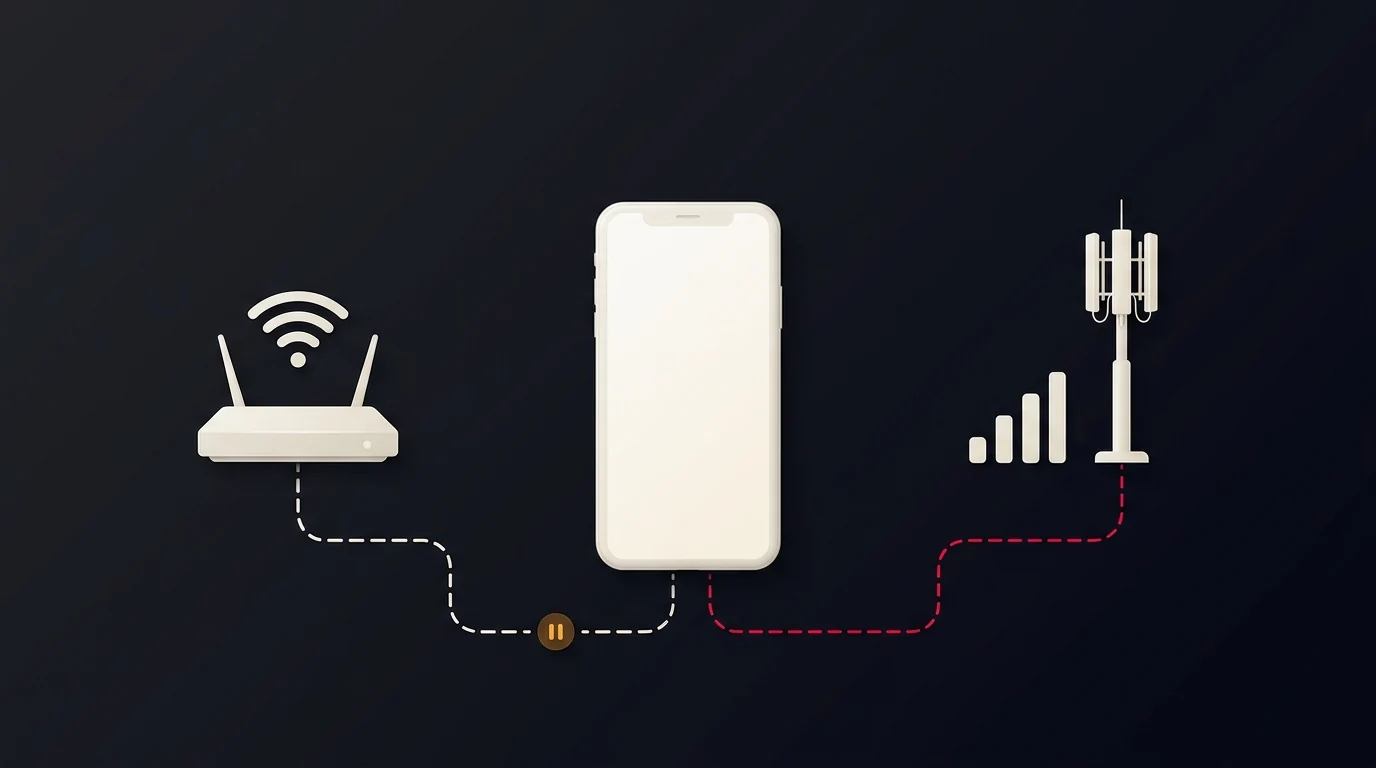
You turn off Wi-Fi, reload the same page, and it opens almost immediately. Turn Wi-Fi back on, and the wait returns—even though your home connection produces the bigger speed-test number.
That difference is useful evidence. It is not yet a diagnosis.
Switching networks changes more than the radio connection to your phone. It can change how the website is reached, which address is used, and what happens along the way. The goal is to find a repeatable pattern before replacing the router, changing DNS, or upgrading your plan.
Quick answer
If websites consistently load faster on mobile data, start by comparing the same page, on the same device, in the same browser. Then check whether the difference affects one website, several unrelated websites, or only one device.
A better mobile-data result can point toward the home wireless connection, home-network settings, or the path between your broadband provider and the website. It does not, by itself, prove a bad router or intentional ISP throttling.
Use this sequence:
- Confirm which connection the device is actually using.
- Repeat a Wi-Fi → mobile data → Wi-Fi comparison.
- Check another device and, if possible, main-router Ethernet.
- Investigate the branch supported by those results.
Watch your data allowance. Large speed tests and video-heavy pages can consume mobile data. Use a few ordinary pages for the first comparison, and avoid roaming charges.
Why a faster speed test can coexist with slower browsing
A speed test and a website visit are different workloads. The test transfers data to its particular destination. A website may need a hostname lookup, connection setup, a server response, and resources from several other destinations before it becomes useful.
Chrome's Network tools separate request phases such as DNS lookup, connection setup, waiting for the first response byte, and reading the response. A high transfer rate does not establish that all those phases are quick for every website.[1]
Changing from home broadband to cellular also changes the network serving the device. Resolver configuration, routes, filtering, and website delivery can differ. A content delivery network, for example, serves content through distributed servers; the delivery infrastructure matters as well as the amount of bandwidth available.[2]
Treat those as possible explanations to investigate—not a list of causes already proven in your case.
1. Make sure “Wi-Fi” really means Wi-Fi
Before comparing, check the active connection rather than relying on the fact that the phone has joined your home network.
Apple's Wi-Fi Assist can switch supported activity to cellular when Wi-Fi is poor. Apple also notes that this can increase cellular-data use. Availability and settings depend on the device and software version.[3]
For a short, deliberate comparison:
- Wi-Fi pass: Keep Wi-Fi on. Temporarily turn cellular data off if you need to rule out automatic fallback and can safely do so.
- Mobile-data pass: Turn Wi-Fi off and confirm cellular data is active.
- Afterward: Restore the settings you normally use.
Some devices have other connectivity-assistance features. Check their documentation if the active connection is unclear.
Do not change required work-network settings, disable a firewall, or bypass a workplace VPN. On a personal device, record whether a VPN, proxy, or privacy-relay feature is active. Keeping the same setting is helpful, but switching networks still may change its behavior. A separate comparison of an optional feature should be one clearly recorded change—not mixed into the first test.
2. Run a Wi-Fi → mobile data → Wi-Fi comparison
Choose the page that feels slow and two unrelated ordinary websites. Stay in the same location and use the same device, browser, and page addresses.
For each connection, record what happens:
- Is there a pause before any useful content appears?
- Does text arrive promptly while images or video controls wait?
- Does the page look complete but respond slowly to taps or scrolling?
- Does it fail with a specific error?
Start on Wi-Fi, switch to mobile data, then return to Wi-Fi. Repeat the sequence if the difference is unclear. The return pass matters: if both later loads become faster, the first slow visit may have been temporary or affected by browser state rather than the connection you selected.
A refresh is not a clean-room experiment. Browsers can reuse resources and connections. Keep your browsing mode consistent, note which visit happened first, and reverse the starting order in a later pass. Do not clear all browsing data between every test; that changes another variable and can sign you out.
For desktop testing, Chrome's Disable cache setting can help compare loads without the ordinary browser resource cache while DevTools is open. It does not make every part of the connection new. Keep the cache setting consistent across both networks.[1]
If you use a laptop connected to a phone hotspot, record that setup explicitly. The laptop-to-hotspot link becomes an additional part of the comparison; it is not identical to browsing directly on the phone.
3. Use the pattern to choose your next test
Swipe or scroll horizontally to read all three columns.
| Repeatable observation | Next investigation | What it does not establish |
|---|---|---|
| One device is slow on home Wi-Fi; another is normal | Browser/device settings and that device's Wi-Fi connection | The router or ISP is completely fault-free |
| Several devices struggle with the same site on home broadband but not mobile data | Reachability, resolver/filtering differences, and the site's delivery path | Intentional throttling |
| Many sites are slow on Wi-Fi, but main-router Ethernet is normal | The local wireless path, coverage, interference, or client behavior | One specific router fault |
| Wi-Fi and main-router Ethernet both show the same website delay | Shared home-network settings or the upstream path | The ISP is necessarily responsible |
| Only one browser shows the problem | Browser profile, extensions, site data, or browser-specific settings | Mobile data is inherently faster |
| The difference disappears when repeated | Temporary conditions or test-order effects | A permanent fix has been found |
These are directions for investigation, not verdicts. If the symptoms overlap several rows, keep the uncertainty rather than forcing a single answer.
If the difference looks wireless
Repeat the Wi-Fi test near the main router, then in the usual room. If available, compare Ethernet through the main router or gateway. Ethernet from a mesh satellite may still depend on wireless backhaul, so record where the cable connects.
For the broader local-network sequence, use our Wi-Fi, router, or ISP diagnostic guide. This article's narrower job is to explain a website that behaves differently between home and mobile connections—not to replace a complete network assessment.
If the difference looks browser-specific
Compare another browser on the same device and network. A private window can be another useful comparison, but it changes browser state too; it is not a measurement of raw internet speed.
Google includes Incognito testing among its Chrome loading-error troubleshooting steps. Use the result to choose a targeted next check, rather than immediately resetting the browser or deleting all saved data.[4]
4. If one website is still slow, locate the wait
On desktop Chrome, open Developer tools → Network, select No throttling, and reload the affected page. Select the main document request and open Timing. If that request is quick but the page stays incomplete, examine the delayed image, script, or other request instead.
The timing breakdown can help narrow the question:
- DNS Lookup: Is resolving the hostname repeatedly the slow part?
- Initial connection / SSL: Is connection establishment taking longer?
- Waiting / TTFB: Is the browser waiting longer for the response to start?
- Content Download: Is receiving or reading the response taking longer?
The available labels depend on the request and protocol. Chrome documents that its waiting segment includes network round-trip delay and server preparation; it does not assign the whole wait to one responsible party. A reused connection may also omit phases you expected to see.[1]
For the full timing walkthrough, read Fast Internet but Slow Website Loading?.
Do not change DNS just because mobile data won
A different network is not a controlled DNS-only comparison. If repeated observations point toward hostname-resolution trouble, record the current configuration and test one supported, reversible change. Check whether the browser has its own secure-DNS configuration before assuming a router change applies to it.
If the long wait is elsewhere, changing DNS may leave it untouched. Avoid blanket advice to disable IPv6, turn off security software, or install a VPN as a universal cure. Improvement after such changes would still need interpretation.
5. Collect evidence before contacting support
A useful report describes the pattern, not just “my Wi-Fi is slow.” Record:
- The affected domain or non-sensitive page.
- Device, browser, connection type, and approximate time.
- Whether one site or several are affected.
- The Wi-Fi → mobile data → Wi-Fi result.
- Another device's result and an Ethernet comparison, if available.
- What felt slow and any visible error or repeated timing difference.
- Relevant VPN, relay, cache, or background-traffic conditions.
Example report structure—not a real VelocityVerify test:
“On the same phone and browser, this page repeatedly pauses on home Wi-Fi but opens promptly on mobile data. Returning to Wi-Fi brings the pause back. Another device on home broadband shows the same symptom; two unrelated websites do not. Here are the times and any errors observed.”
Review screenshots before sharing them. URLs and network logs can expose account details or private information. Use a trusted support channel, not a public post containing an unreviewed log.
Should you upgrade your internet plan?
Not based on this comparison alone. More bandwidth is not a guaranteed answer to a hostname lookup, connection-establishment problem, browser issue, or site-specific response delay.
Run VelocityVerify on each connection under comparable conditions and note the measurements available in the interface alongside the website behavior. VelocityVerify's methodology explains that results depend on the device, local network, current congestion, and route to its test endpoint. They do not measure every website's path.[5]
The next useful step is a controlled comparison, not a purchase. Confirm the active connection, repeat the same-page test, and follow the branch the evidence supports. Mobile data may be the better workaround today; the comparison helps you decide what to investigate on your home connection.