
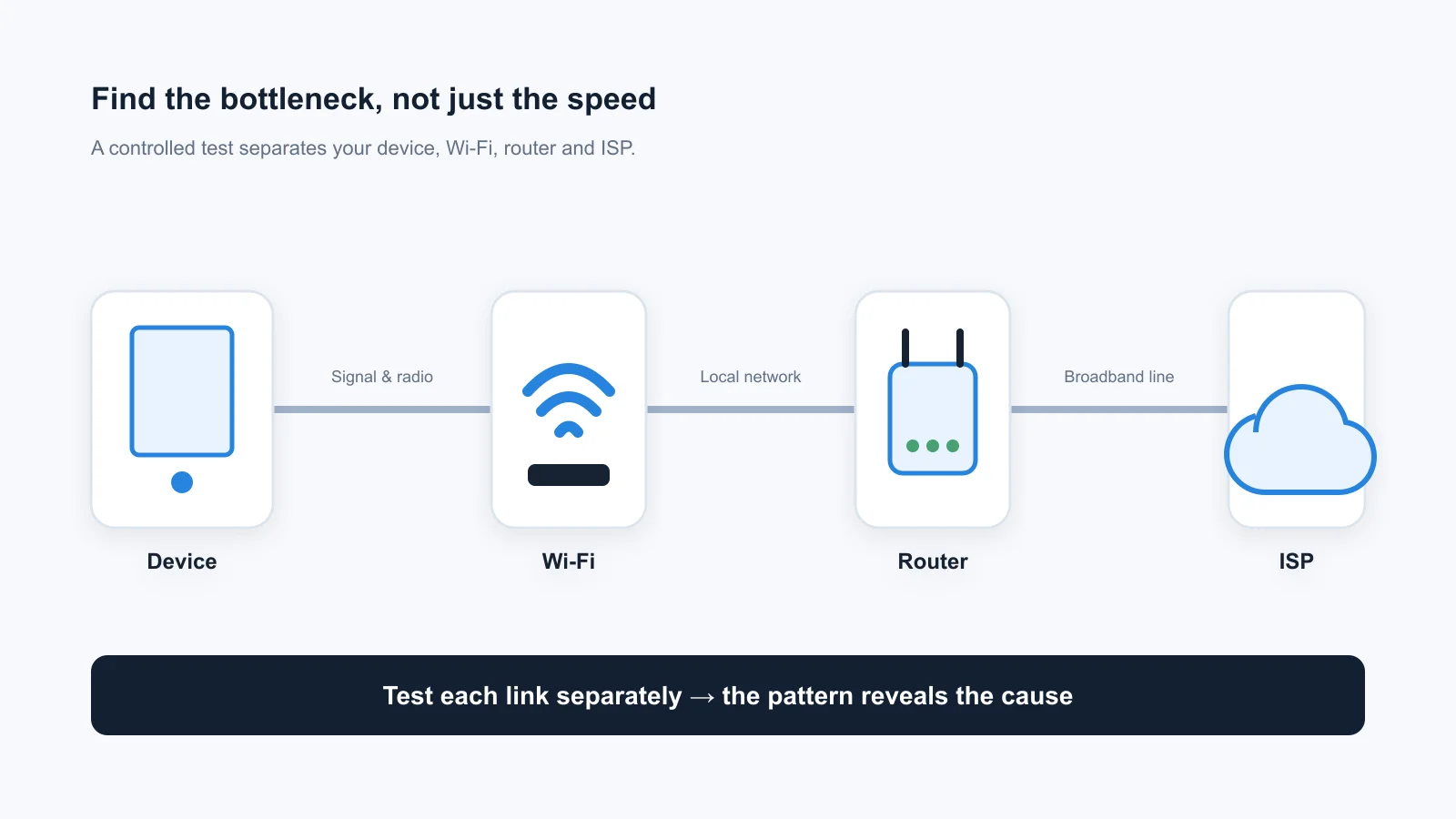
The most frustrating internet problems are the ones that refuse to look like problems. Your plan says 500 Mbps. A quick speed test briefly shows something close to it. Yet Zoom freezes, games rubber-band, and the bedroom Wi-Fi feels as if it is travelling through wet concrete.
The reason is simple: "internet speed" is not one thing. Your experience is the result of a chain—your device, its Wi-Fi connection, the router, the modem or gateway, your ISP's local network, and the path to the service you are using. A fault at any link can make the whole connection feel slow.
The useful question is not "Is my internet fast?" It is "Where does the performance first become bad?"
1. Before You Test: Create a Clean Baseline
A casual speed test is a snapshot of everything happening at that exact second. For a diagnostic test, remove as many unknowns as possible before running your first test:
- Pause background traffic: Pause cloud backups, game updates, torrents, and large downloads.
- Notify household members: Ask others in the home to avoid heavy streaming or downloads for 15 minutes.
- Turn off VPNs: Disable any VPN software for the baseline test to remove third-party routing hops.
- Use one single device: Use the same laptop or desktop for every comparative test run.
- Keep the test platform identical: Use the same browser and testing engine across all phases.
- Run three passes: Execute each important test three times rather than trusting one isolated anomaly.
Write down four essential measurements: download throughput, upload throughput, idle latency (ping), and jitter. If the test measures latency while the connection is busy, record that too. Loaded latency (bufferbloat) is frequently the missing clue when a connection looks fast on paper but stutters during calls.
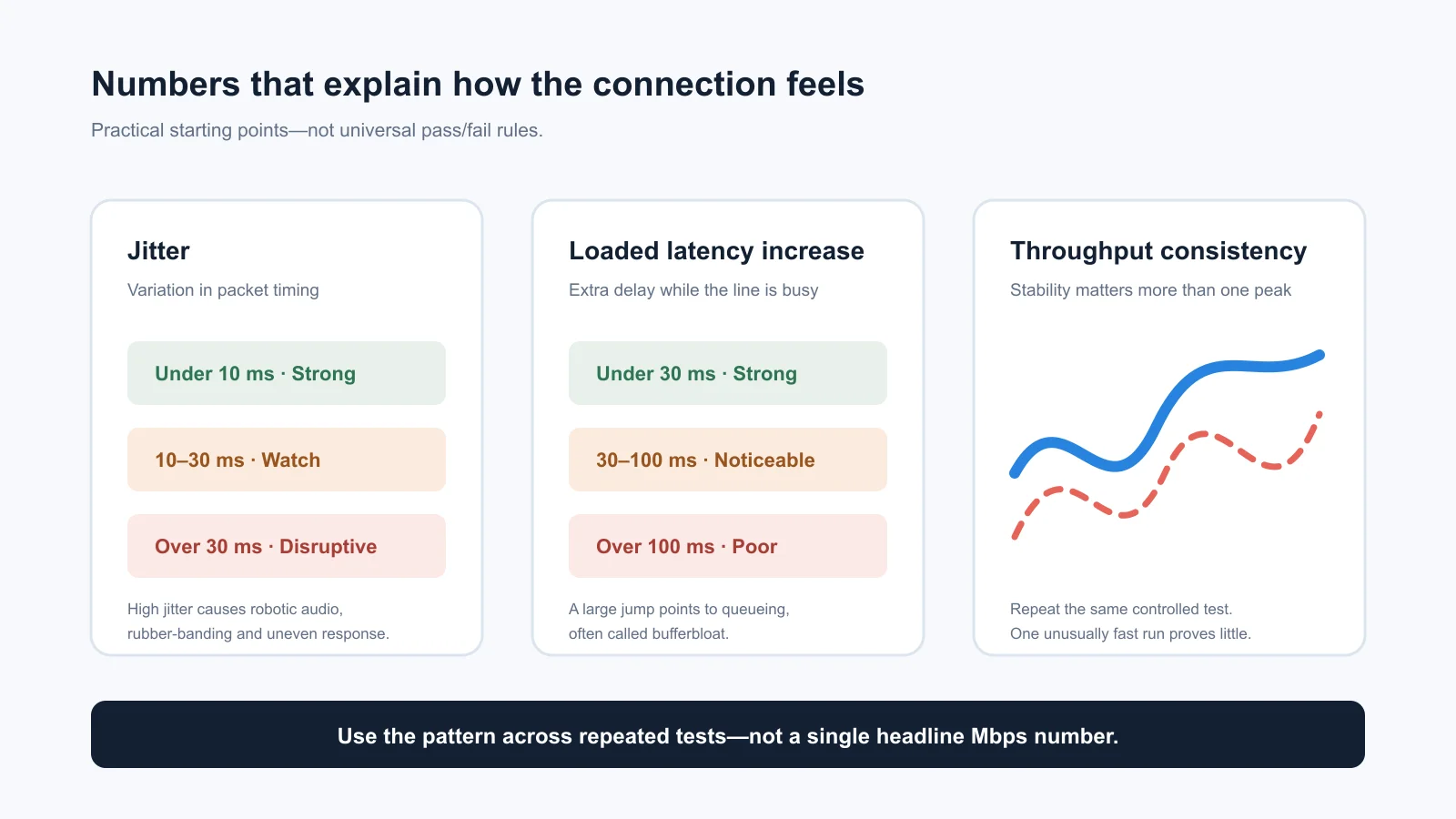
Practical benchmark targets: Jitter under 5 ms, loaded ping increase under 20 ms, and throughput stability above 90%.
2. The Five-Test Diagnostic Method
By stepping methodically through these five tests, you isolate each physical and logical segment of your home network connection:
Run a Wired Ethernet Baseline
Connect your test computer directly to the main router or gateway using a Cat6 Ethernet cable. Do not use a mesh satellite, powerline adapter, Wi-Fi extender, or unpowered USB hub unless there is no alternative.
Run VelocityVerify three times. If your wired results are already poor, Wi-Fi is not the primary issue. The bottleneck moves upstream: your broadband modem, line attenuation, neighborhood ISP congestion, plan provisioning, or router CPU exhaustion.
Compare Wi-Fi Beside the Router
Disconnect the Ethernet cable and stand roughly five to eight feet from the main router with direct line-of-sight. Confirm your device is connected to your primary Wi-Fi network (preferably on the 5 GHz or 6 GHz band), then repeat the three tests.
A modest drop in throughput (10% to 20%) is completely normal due to wireless protocol overhead. A dramatic collapse beside the router is not normal. It points directly toward the router's wireless radio, an outdated client Wi-Fi driver, channel congestion, or local radio interference.
Test Where the Problem Actually Happens
Move to the specific desk, bedroom, or living area where your internet connection feels unreliable. Keep using the exact same device.
If performance is strong beside the router but deteriorates significantly in this room, your ISP is almost certainly blameless. Look for physical barriers: interior walls, foil insulation, plumbing, neighboring Wi-Fi networks on overlapping channels, or mesh nodes with weak backhaul links.
Compare Idle and Loaded Latency (Bufferbloat)
Some connections remain responsive only while idle. The moment a household member uploads photos to cloud storage or downloads an update, latency spikes into the hundreds of milliseconds.
That pattern is queueing delay, known as bufferbloat. The link has raw bandwidth, but the router allows unmanaged packet buffers to fill up. Small, time-sensitive packets for gaming and voice calls get stuck behind bulk downloads. Enabling Smart Queue Management (SQM, CAKE, or fq_codel) on your router directly cures this issue.
Repeat at Peak and Off-Peak Times
Run your wired baseline once during a quiet morning period and again during evening peak hours (7:00 PM – 11:00 PM). A connection that is pristine at 9:00 AM but consistently degrades every evening on Ethernet points toward neighborhood ISP node oversubscription.
One bad test is an anecdote. A consistent time-of-day pattern documented over several days is actionable evidence.
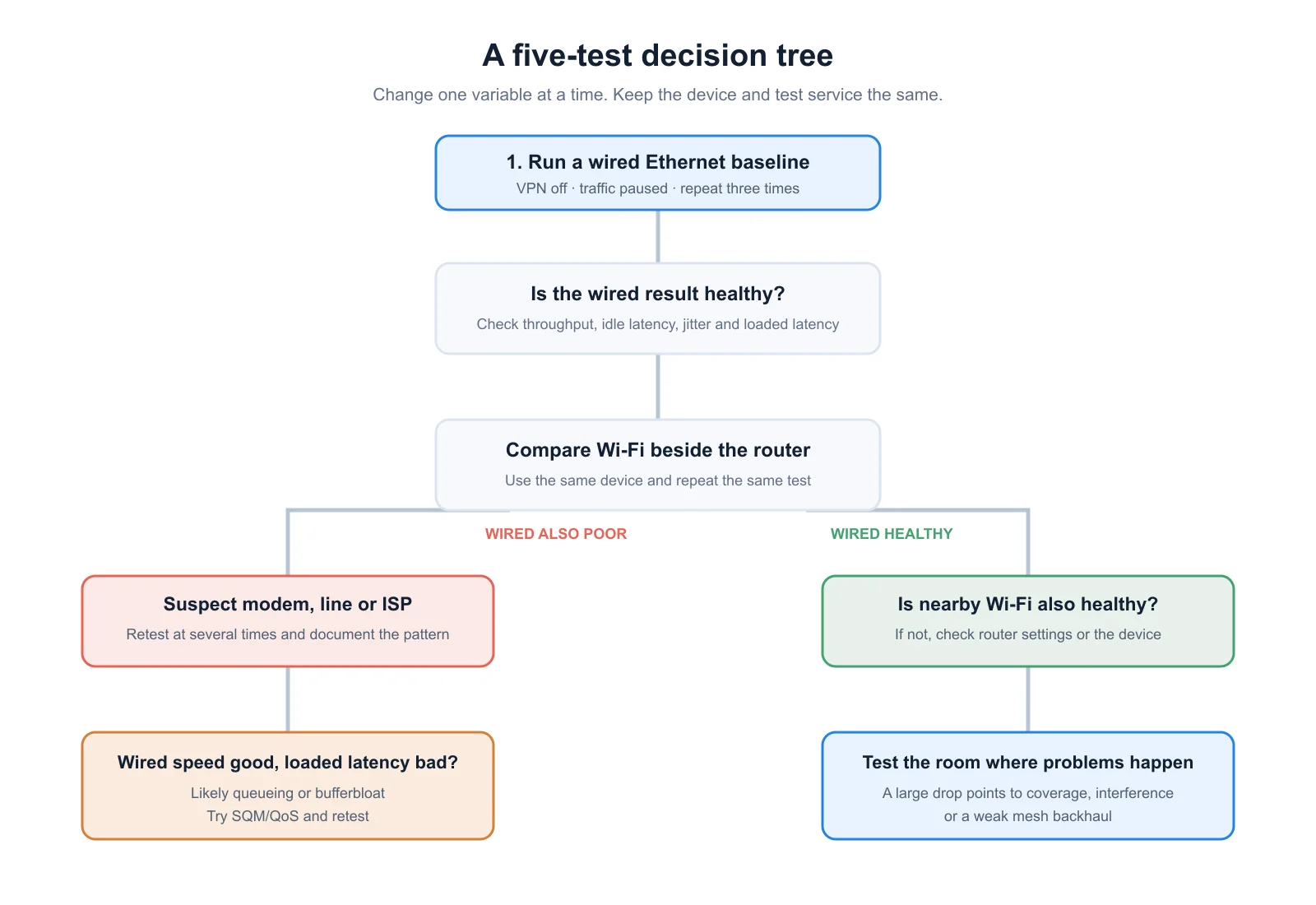
Diagnostic flowchart: Start with wired Ethernet, evaluate line-of-sight Wi-Fi, test distance, and inspect loaded bufferbloat.
3. How to Read the Diagnostic Pattern
Match your five test results against these signature network behavior profiles:
4. What to Fix — and What Not to Buy Yet
Do not spend money on new hardware until your diagnostic numbers prove where the failure is occurring. A $400 Wi-Fi 7 router cannot repair an ISP line fault. An expensive gigabit plan upgrade cannot fix an aging laptop with a 1x1 antenna. A mesh kit will degrade latency even further if its satellite nodes are spaced too far apart.
If Wi-Fi Coverage is the Bottleneck
Move your router into the open and elevate it onto a shelf. Place it as centrally as possible in your home. Use 5 GHz or 6 GHz for devices where low latency and speed matter, reserving 2.4 GHz for low-bandwidth smart home accessories. If using mesh units, ensure each satellite has a strong line of communication to the gateway, or deploy an Ethernet backhaul.
If Bufferbloat Latency is the Bottleneck
Check your router settings for Smart Queue Management (SQM), CAKE, fq_codel, or Adaptive QoS. Set download and upload bandwidth caps to roughly 90%–95% of your measured connection speed to prevent packet queues from filling up. Retest using VelocityVerify's bufferbloat diagnostic.
If Your ISP is the Bottleneck
Assemble an evidence log. Record multiple wired Ethernet test results spanning morning, afternoon, and evening peak hours across several days. Document your subscribed speed tier, the direct wired connection, and the exact ping and jitter figures. This structured log gives ISP support tier-2 technicians actionable evidence rather than an ambiguous complaint.
Test Your Entire Connection Chain
VelocityVerify measures full-duplex throughput, unloaded ping, loaded bufferbloat latency, and packet jitter in under 30 seconds.
Run the Internet Diagnostic Test5. Frequently Asked Questions
Should Wi-Fi be as fast as Ethernet?
Not necessarily. Wi-Fi has protocol overhead, physical interference, and shared airtime. The critical question is whether the delta is stable and reasonable. A dramatic speed drop right beside your router signals configuration or radio interference issues. Read our Wi-Fi vs. Ethernet Latency Showdown for detailed benchmark data.
Does a fast download result prove my ISP is fine?
No. A high download throughput number only proves one file transfer was fast at that specific moment. It does not rule out loaded latency bufferbloat, high jitter, packet loss, or poor routing to services you actually use.
Will upgrading my internet plan fix lag?
Only if bandwidth saturation was the root cause. Upgrading to a faster plan will not fix Wi-Fi radio interference, bufferbloat queue delays, outdated client adapters, or ISP routing bottlenecks. Always diagnose first.
How many tests should I run before contacting my ISP?
Start with three controlled wired tests directly into your router, then repeat during the period when issues typically occur. Gathering repeated wired results across several mornings and evenings provides concrete proof of an ISP-side problem.
Why do two speed test services disagree?
Different testing services use different server hosting locations, transit routes, multi-stream counts, and measurement methodologies. Disagreement is informative: it reveals whether performance is destination-dependent or constrained by your local loop.

About the Author: Younes Kirat
Younes publishes and maintains VelocityVerify, focusing on broadband diagnostics, latency reduction, and consumer networking explainers. Read more about his work on his author profile.